ANDROID FIRST COMPUTING
last updated: 2026-11-08
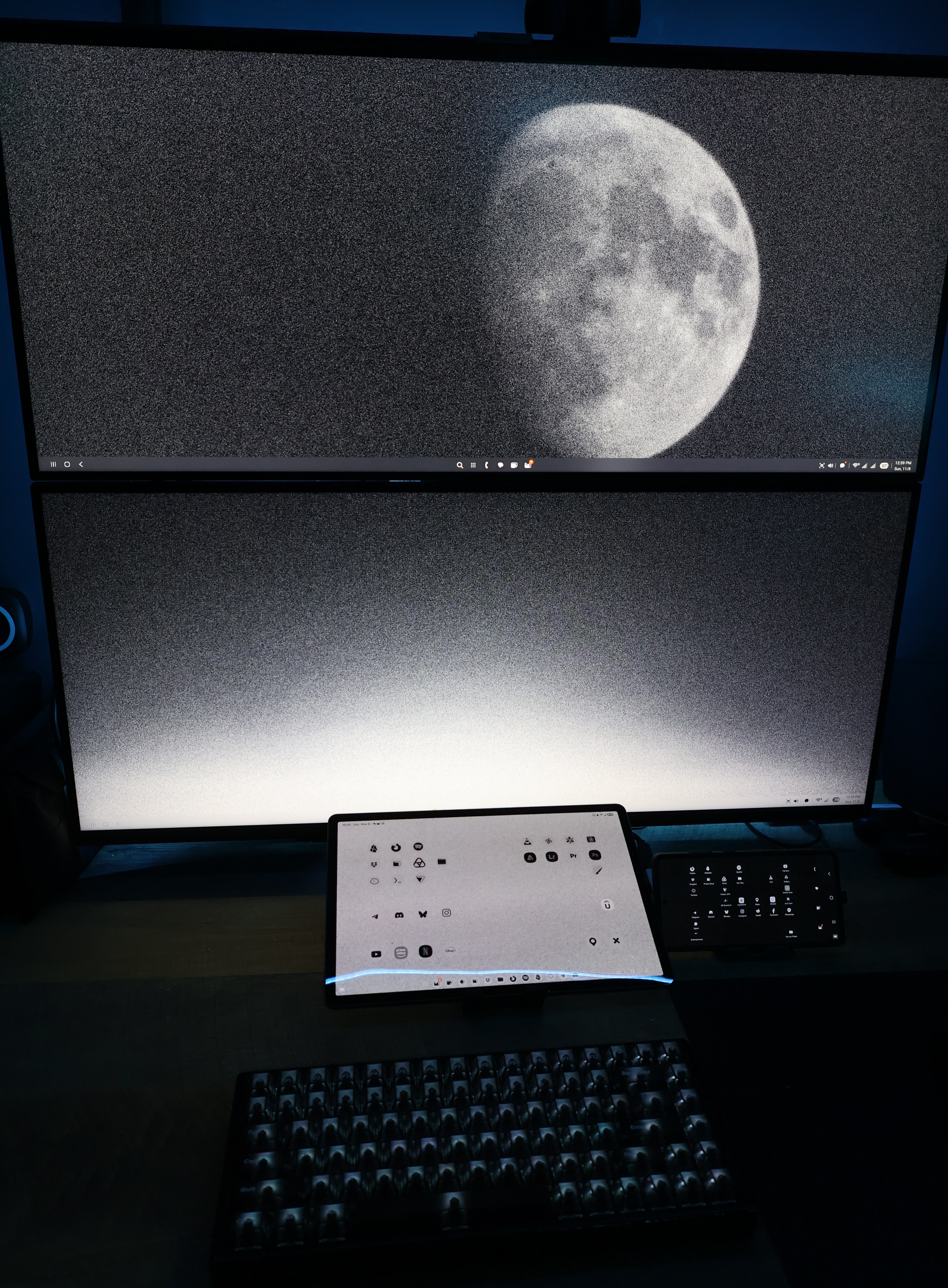
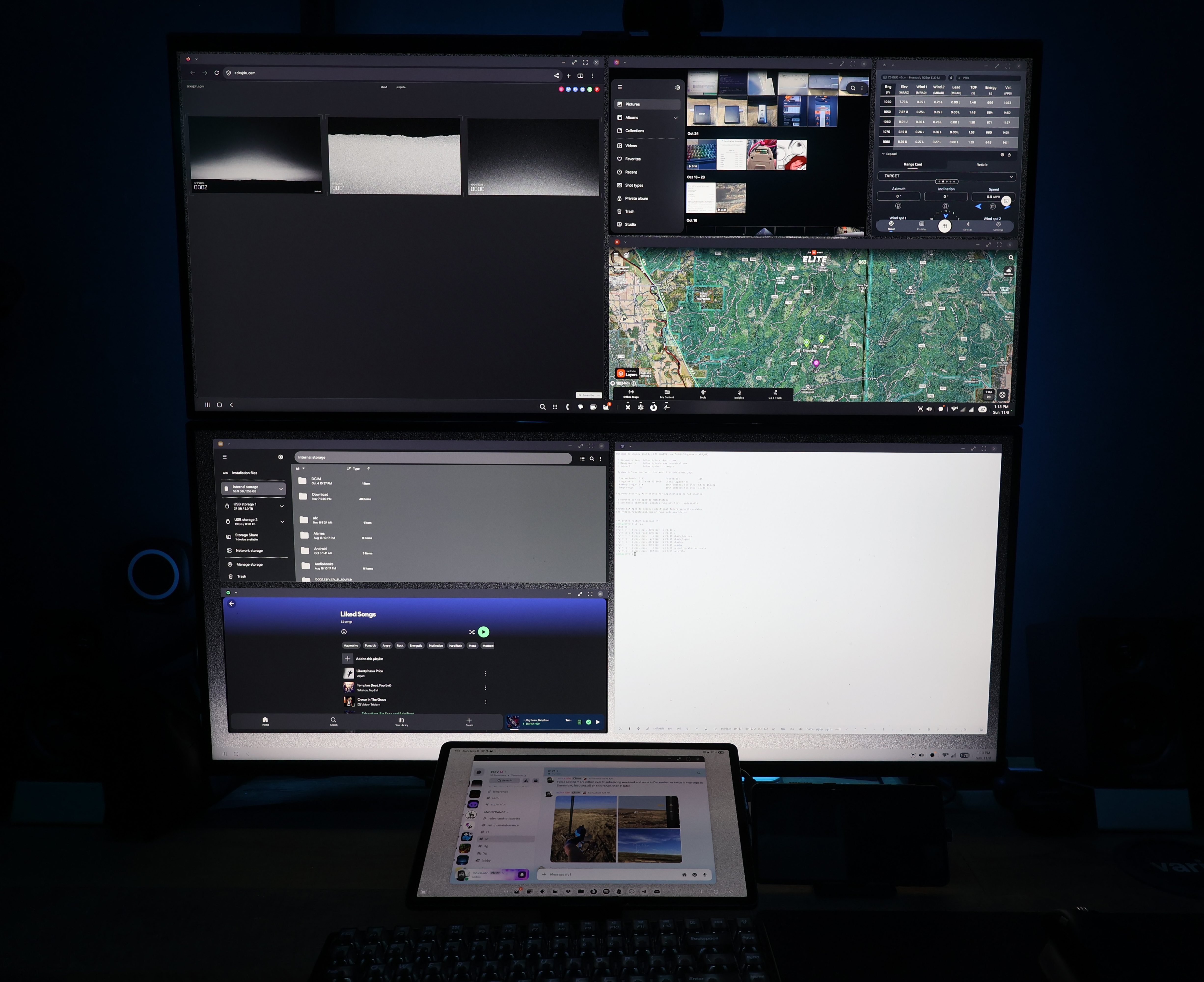
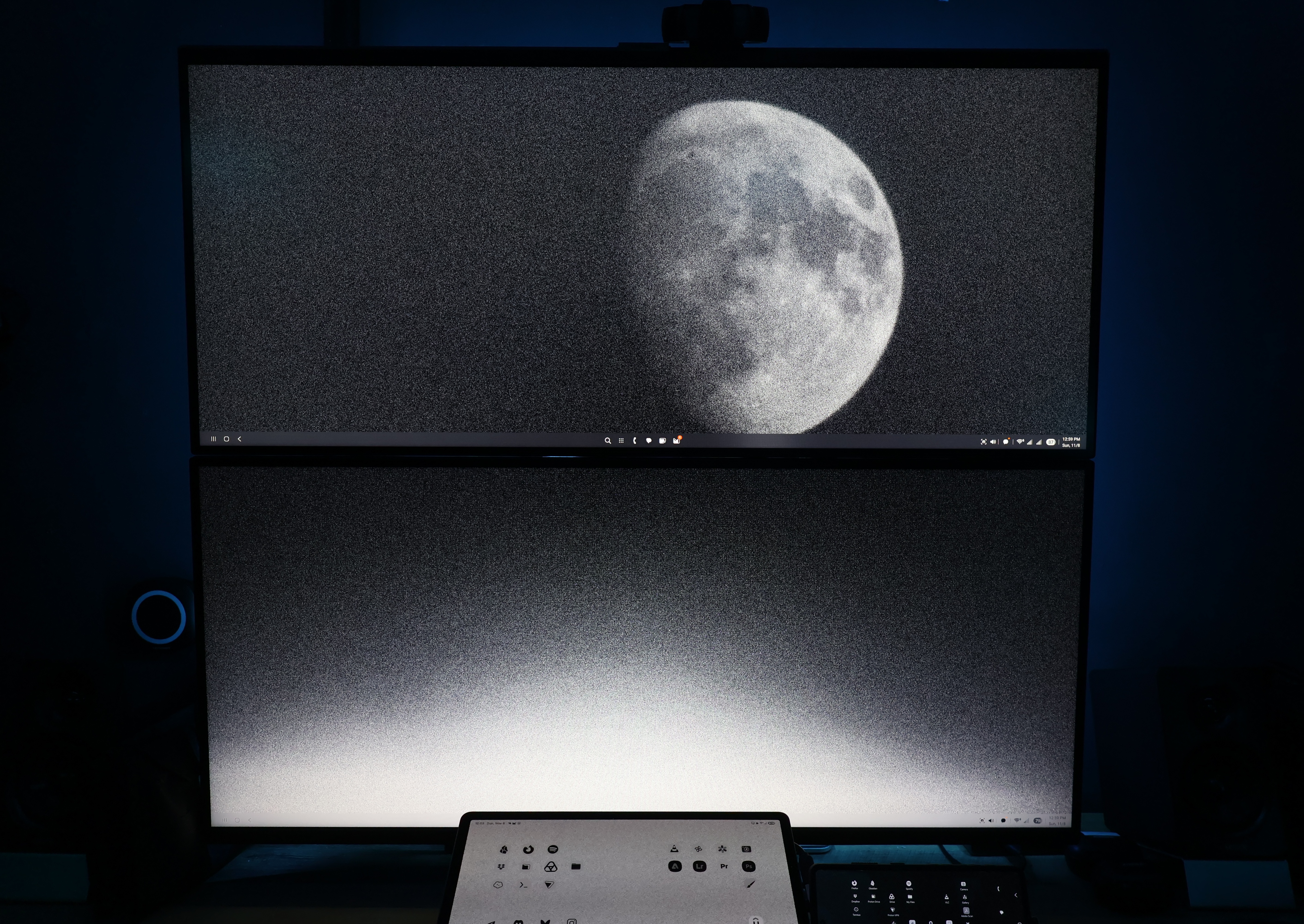
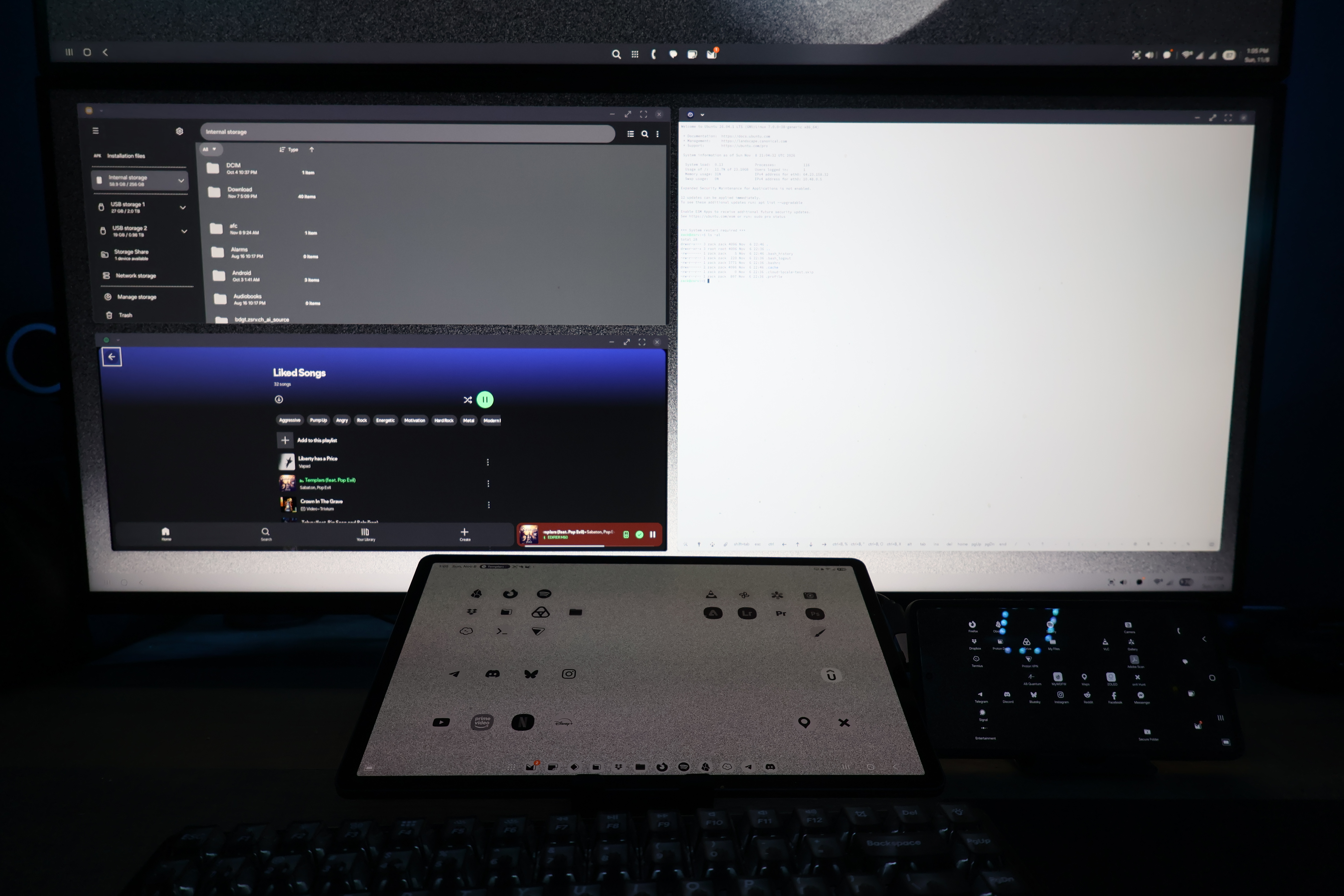
DEATH OF A LAPTOP
My 6 year old gaming laptop, which was used as a workhorse desktop for light software and web development, media editing(photo & video), virtualization(virtual servers, desktops), and some light gaming(cs2), finally gave up. Being in the middle of the AI bubble, building a desktop or purchasing a laptop with the proper specs to last another 5-6 years for the work loads I run, isn’t feasable financially. Costs will need to come down before a viable replacement can be had. Currently(2026-11-08) my estimated desktop build is costing anywhere from ~ $3,500.00 – $5,000.00, depending on day, current market prices, and parts availability.
Needing an alternative desktop like experience, I checked out Samsung DeX again after about 3-4 years of ignoring it due to it’s limitations poreivously. It’s improved some in general, but largely contains similar limitations, such as a single external display. With a little hard, creativity, and a few tweaks, running on the latest Android OS & OneUI versions, DeX can actually be quite usable now for many workloads. You can simulate a dual screen environment using both a phone and tablet and the combined features offered between Google/Android and Samsung/DeX.
This guide will start with the intial tablet configuration, add on the phone & dual screen screen experience. documenting limitations & workarounds along the way, and list out all hardware, apps, versions, etc. in use. It will end with any outstanding issues that don’t yet have a clear resolution. This will be a living document with a last updated date at the top of the table of contents.
HARDWARE & PREREQUISITES
We’ll be using the exact hardware/peripheral setup used with my previous laptop. I’ll try to link directly to everything used in this guide; no affiliate links.
COMPUTE
- Samsung Galaxy Tab S9 Plus
- Samsung Galaxy S25 Ultra
PERIPHERALS
- 2 x Samsung ViewFinity S5 – 34″ UWQHD 100hz Monitors [https://www.samsung.com/us/monitors/flat/34-viewfinity-s50gc-ultra-wqhd-100hz-amd-freesync-hdr10-monitor-sku-ls34c502ganxza/]
- Keychron K2 HE Keyboard – Reson Edition [https://www.keychron.com/collections/keychron-he-keyboards/products/keychron-k2-he-wireless-magnetic-switch-custom-keyboard-resin-edition]
- Keychron M6 Mouse (1K Polling) – [https://www.keychron.com/products/keychron-m6-wireless-mouse]
DOCKS/PORT REPLICATORS
- HyperDrive Next 11 Port USB-C Hub – [https://a.co/d/03DTlYSK]
- Anker Nano USB-C Hub (7-in-1. 4K HDMI) [https://a.co/d/09Q66Ncd]
POWER
- Anker 736 Charger (Nano II 100W) [https://a.co/d/047Nkn2C]
CABLES & ADAPTORS
- 2 x Cable Matters 40Gbps USB4 Extension Cable 3.3ft [https://a.co/d/0aVfi24R]
- 2 x Cable Matters 20Gbps USB C to USB C Monitor Cable, 6ft [https://a.co/d/0bQ1os9R]
- Cable Matters Combo-Pack 40Gbps Right Angle USB C Adapter Kit [https://a.co/d/00Qr4G0P]
- 2 x HDMI [Cables included with mointors are fine. We’ll be capped at 60hz regardless]
MISC. HARDWARE (OPTIONAL)
- Monitor arm/mount of your choice(if needed) depending on desired screen orientation. This assumed you are not using the OEM monitor base.
- For reference, here are the two monitor arms in my setup:
- Top screen: “VIVO Extra Tall Single Monitor Desk Mount, Up to 38″ Ultrawides” – https://a.co/d/03XbGdcC
- Bottom screen: “j5create – Ergonomic Dual Monitor Desk Mount for Most 17”-32” Monitors – Black” – https://www.bestbuy.com/product/j5create-ergonomic-dual-monitor-desk-mount-for-most-17-32-monitors-black/J36445R6TF
- For reference, here are the two monitor arms in my setup:
- Phone and tablet stands of your choice depending on desired location and screen usage. This assumes you will be using the device screen in some fashion, either as a touchpad, extra display, etc.
- Reference point, my current stands are both phone stands
- One a pocket sized stand propping phone up for screen visibility.
- The other is supposed to allow you to raise and lower a phone but even my S25U is too heavy. It’s currently lowered all the way for tablet support/proper angle for viewing.
- Reference point, my current stands are both phone stands
DEX – THE BASICS
Starting DeX on your tablet is quite easy. Simply plugin an external display, or connect to one wirelessly, and you’ll enter DeX mode. You can have full screen app-like experiences, or apps running in a windowed mode like in a desktop environment on Linux/Windows/macOS; which can be moved, minimized, resized, etc. But simply plugging in a an external display doesn’t really do you much good good without peripherals. Using the above listed peripherals and the following setup guide, we’ll get a full desktop experience, emulating a nearly seemless two display setup.
PHYSICAL SETUP
MONITOR STANDS & MONITORS/SCREENS
Mount your stands in a way that will orient your screens in an ideally most ergonomic to you manner. For myself, I also work from this same setup professionally with a lot data manipuplation, script running, etc. so having stacked ultra-wide monitors gies me both height and width at work, at a reasonable eye level.
Ensure your stands are properly and fully mounted to your desk if applicable. While not excessive, we’ll be using the mounts and monitors as a base for cable management and dock/hub placement.
DOCK/HUB PLACEMENT
I personally like a minimalist setup, so I’ve mounted both docks/hubs behind their respective monitors using 3M double sided, heavy duty, sticky tape. This sticky tape will generally only damage wallpaint when improperly removed; and our devices will not be generating too much heat, so this mounting option should not be of concern. Place a nice sized rectangle or square on one end/half of the dock/hub, and affix to your monitor’s back. This will allow easy removal and re-positioning if needed.
Orient the dock/hub so that it has both the ports in an easy to view/reach position, along with the cable end facing down or at most, horizontal, to get the most length available to reah your tablet and phone.
POWER
Place your power brick within 6′ of your furthest away dock/hub. This should be plugged into a surge protector for proecting both your tablet and your connected peripherals. You’ll likely have no inidcation yet that power is being received until we get to plugging in the devices.
CABLING
POWER
The Anker 736 has 3 USB slots, one USB-A and two USB-C. The two USB-C ports have icons indicating a laptop/tablet and a tablet/phone. I cabled my 6′ power cables accordingly, with the assumption that more wattage will be available to the tablet, which has the larger capacity battery and where most of my apps are ran, which will cause more power usage(although likely not very noticeable).
DATA EXTENSION (DOCK/HUB TO TABLET/PHONE)
For the USB-C dock or hub(s) you’ve chosen, use the 3′ USB-C extension cables to reach where you’d like to place your devices. I do not recommend daisy chaning, or hooking up extenssion to extension to reach 6′ or more. This may cause display or peripheral connection issues. USB-C extensions are not all made equally, and even higher quality cables & connections can suffer when extended too far.
For myself, I use the HyperDrive hub for my tablet, and the Anker hub for my phone. They also are swappable, both working on the other device(s).
TABLET SETUP
Next we’ll configure the tablet itself for optimal DeX settings to emulate a dual screen desktop environment.
OS CONFIG
MULTI CONTROL
Enable ‘Multi control’ to always be on from the tablets perspective. You can find this easily from pulling down in the top right corner of the tablet’s screen, where the clock and other system icons are located. Find Multi control in the Settings app, tap into the feature and ensure the proper Samsung Account is listed. You’ll likely need to shortcut your way into this section in the future as well to reconnect your phone whenever you disconnect DeX and the initial Multi control connection.
BATTERY PROTECTION
Enable ‘Battery protection’ in the Settings app. Set the protection level to 90% to start with. You can always adjust this default to whichever level you prefer later, or, turn it off entirely if desired. 90% is a decent balance of available battery capacity vs. battery life/health when not in DeX mode. We’ll configure this to change automatically via Routines and Modes to further protect the battery while it’s acting as essentially a desktop.
ADAPTIVE BATTERY
Ensure ‘Adaptive battery’ feature is enabled. In the long run, this will extend the life of your battery, causing it to lose maximum capacity slower over time.
LABS
Under labs, enable the ‘Multi window for all apps’ feature. This will give you a more desktop like experience.
MUSIC SHARE
Enable ‘Music Share’, then tap into the feature and select the devices to share between your tablet and phone, along with the permissions you feel are acceptable.
CONTINUE ON OTHER DEVICES
Enable ‘Contine on other devices’, then tap into the feature and ensure the proper Samsung Account is listed.
STORAGE SHARE
Enable ‘Storage Share’. This will allow your phone to access your tablet’s storage’s Internal Storage, such as Documents, Downloads, Pictures, etc. This can be very useful when using your devices indepently but want to easily share or transfer files between devices when they are ‘acting as one’.
DeX CONFIG
You may need to connect you tablet to your dock/hub for configuration going forward.
CONNECTED DISPLAY
Assuming you will be using both the tablet’s screen and the the connected screen/monitor, ensure ‘Extended’ is selected, along with ‘Flow pointer to tablet’. Without this, you will have a less cohesive environment.
DISPLAY RESOLUTION
Choose the resolution you’d like on your external display. This is likely only available when the external monitor is connected. If you do not see the resolution(s) you expect, there is a workaround using the GoodLock app.
DISPLAY ROTATION
You can likely leave this setting as is, unless you have stacked monitors and flipped the top to minimze bezels in the middle of your screen like I have. In that case you’ll be chaning this setting during the phone’s DeX setup.
SCREEN TIMEOUT
By default, mobile devices screen’s turn off faster than your average desktop or laptop. This is where you can increase the timeout to be more inline with a desktop or laptop computer. We can also leave this as is, and configure using Routines shortly. I have my Routine set the timeout to the maximum available of 30 minutes.
ROUTINES
DEFAULT DeX ROUTINE
Although I have multiple routines for power & battery management(which will be added later), we’ll cover a single DeX specific routine for now.
Create a new Routine, choosing whichever color and icon you’d like. My primary Routine is named “Samsung DeX – On Routine Normal”. It is configured as such:
IF
Samsung Dex = Started
Battery level = Equal to or above 65%
THEN
Screen orientation = Landscape Right
Fast charging = Off
Battery proection = Maximum
Power saving = Off
WHEN ROUTINE ENDS
Screen orientation = Return to status before routine ran
Fast charging = Return to status before routine ran
Battery Protection = Return to status before routine ran
Power saving = Return to status before routine ran
KEEP ROUTINE UNTIL
Forever
Saving this routine as your base/first DeX routine is a great starting point. The settings are pretty self explanatory and revert back to your normal settings when you leave DeX mode. You can customize this as you desire or add different conditions depending on device state. I personally have multiple different routines based on current battery charge level to help maintain battery health and to charge up quickly when entering DeX mode if charge level is initially low.
TIPS/TRICKS/RECS
GOODLOCK
PHONE SETUP
OS CONFIG
MULTI CONTROL
On my phone, I leave Multi control off by default, and enable it via a Routine specifically for DeX so that I do not accidentally control my phone when I want my devices separate. We’ll go into that configuration in the ROUTINES section.
BATTERY PROTECTION
Enable ‘Battery protection’ in the Settings app. Set the protection level to 90% to start with. You can always adjust this default to whichever level you prefer later, or, turn it off entirely if desired. 90% is a decent balance of available battery capacity vs. battery life/health when not in DeX mode. We’ll configure this to change automatically via Routines and Modes to further protect the battery while it’s acting as essentially a desktop.
ADAPTIVE BATTERY
Ensure ‘Adaptive battery’ feature is enabled. In the long run, this will extend the life of your battery, causing it to lose maximum capacity slower over time.
LABS
Under labs, enable the ‘Multi window for all apps’ feature. This will give you a more desktop like experience.
MUSIC SHARE
Enable ‘Music Share’, then tap into the feature and select the devices to share between your tablet and phone, along with the permissions you feel are acceptable.
CONTINUE ON OTHER DEVICES
Enable ‘Contine on other devices’, then tap into the feature and ensure the proper Samsung Account is listed.
STORAGE SHARE
Enable ‘Storage Share’. This will allow your phone to access your tablet’s storage’s Internal Storage, such as Documents, Downloads, Pictures, etc. This can be very useful when using your devices indepently but want to easily share or transfer files between devices when they are ‘acting as one’.
DeX CONFIG
You may need to connect you tablet to your dock/hub for configuration going forward.
CONNECTED DISPLAY
Assuming you will only be using the external screen as part of your setup and keeping the phone’s screen as phone only/not integrated, ensure that ‘Flow pointer to tablet’ is not enabled.
DISPLAY RESOLUTION
Choose the resolution you’d like on your external display. This is likely only available when the external monitor is connected. If you do not see the resolution(s) you expect, there is a workaround using the Good Lock app.
- Download ‘MultiStar’ inside of Good Lock.
- Enable ‘MultiStar’.
- Enable ‘High resolutions for external display’.
- Back at the main DeX resolution options, you should now see all available/expected resolution options.
DISPLAY ROTATION
You can likely leave this setting as is, unless you have stacked monitors and flipped the top to minimze bezels in the middle of your screen like I have. Since my screen is flipped upside down, with the top bezel at the bottom, in the middle of the two screen, my screen rotation is set to 180*.
SCREEN TIMEOUT
By default, mobile devices screen’s turn off faster than your average desktop or laptop, especially mobile phones. This is where you can increase the timeout to be more inline with a desktop or laptop computer. We can also leave this as is, and configure using Routines shortly. I have my Routine set the timeout to the maximum available of 10 minutes.
ROUTINES
I have one Routine for Samsung DeX use on the phone. It changes a few settings and optimizes the phone for work that may be about to happen, and then when DeX stops running, it reverts all changed settings to previous values and optimizes the phone again. Multi control is puposely turned off so that I do not mouse over ot my phone accidentally when not in DeX mode.
SAMSUNG DeX – ON ROUTINE
IF
Samsung Dex = Started
THEN
Multi control = On
Optimize phone
Battery Protection = Maximum(80%)
Screen orientation = Auto rotate
Screen timeout = 10 minutes
WHEN ROUTINE ENDS
Multi control = Off
Battery Protection = Restore to status before routine ran
Screen orientation = Restore to status before routine ran
Screen timeout = Restore to status before routine ran
Optimize phone
TIPS/TRICKS/RECS
GOOD LOCK
MULTI FOCUS
Using MultiStar, enable ‘Multi Focus’
- Download ‘MultiStar’ inside of Good Lock if not done already.
- Enable ‘MultiStar’.
- Enable ‘Multi Focus’
APPS USED
Being limited to apps rather than regular desktop applications seems limiting at first, but there are quite a few options out there to choose from to fill in the gaps for nearly all use cases, except for very specialized workflows, ie; CAD software or vendor specific/in-house developed software. Here’s a bit of what I use most often.
- Firefox – Web browsing with extension support.
- Spotify – Music and podcasts.
- Obsidian.md – Notes with sync & encryption in markdown language format.
- Termius – SSH & SFTP support for remote access into servers I manage.
- My Files – System wide file management with support of some cloud providers, USB drives, network shares. and SSH mounted volumes.
- VLC – Video player.
- Signal – Secure chat.
- Telegram – Chat
- Proton Drive – Encrypted cloud storage.
- Proton VPN – Secure, and trustworthy, VPN client.
- Proton Pass – Secure password manager that integrates with Android’s autofill system.
- Discord – Text & voice chat.
- onX Hunt – Shooting and hunting location mapping with GPS coordinates and path tracking.
- Secure Folder – Sandboxed apps for work access such as Outlook, Teams, Okta, etc.
- Good Lock – Official Samsung customization options.
LIMITATIONS & WORKAROUNDS
SYSTEM LEVEL
- Lock & Unlock
- Issue
- You need to lock and/or unlock two devices each time.
- Workaround
- Two biometric thumbprints… JFC are you seirous ;]
- Issue
APPS
- Firefox
- Issue
- Scrolling sometimes gets stuck, and scrolling to the bottom of some pages stops working.
- Workaround
- Move window to tablet screen and touch to finish scrolling.
- Issue
- Proton Pass
- Issue
- Cannot generate random password using mouse to click.
- Workaround
- Move window to tablet screen and tap the generate button to succesfully generate a password.
- Issue
OUTSTANDING ISSUES NEEDNIG WORKAROUND/RESOLUTON
SYSTEM LEVEL
- True, native, dual/multi monitor support via on USB-C hub.
APPS
- Discord
- Only renders properly on tablet display, not external screen.
- Must manage Nitro subscription via web browser as mobile app does not allow it.
- Bluesky
- Only renders properly on tablet display, not external screen.
- Firefox
- No bookmarks bar available in mobile versoin of app.
- Scrolling sometimes gets stuck, and scrolling to the bottom of some pages stops working.

